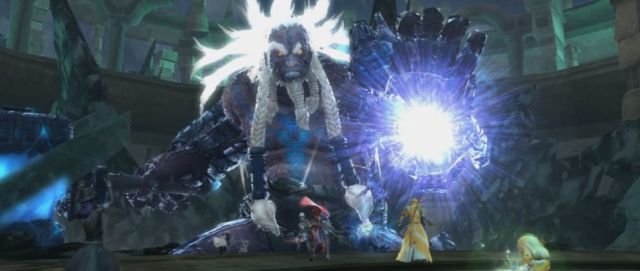
In this guide, I will explain through easy steps, how to enable/activate a number of useful performance and graphical settings, using a simple text file. All that is needed on your part is, to know how to copy/paste text into a text editor like Notepad.
-First, run Notepad (Windows default text editor).
-Second, Copy & Paste the following into Notepad, explanation follows:
#Basic settings# con_disable_console = "0" g_open_aion_web= "0" g_save_preset = "1" d3d9_TripleBuffering= "1" r_Texture_Anisotropic_Level= "16" d3d9_TextureFilter= "TRILINEAR"As you can see, Code contains 6 command-lines most of which are self-explanatory. Nevertheless here is a breakdown:
con_disable_console = "0" -Allows you to use the in-game console by pressing PauseBreak key
g_open_aion_web= "0" -Disables opening Aion webpage when quiting
d3d9_TripleBuffering= "1" -Enables Triple buffering, this must be set to enabled, it offers a significant performance boost-
r_Texture_Anisotropic_Level= "16" -Enables 16x Anisotropic filtering, sharpens textures with minimal performance loss-
d3d9_TextureFilter= "TRILINEAR" -Sets filtering type to 'Trilinear'
g_save_preset = "1"-Saves your settings
- 1 means enabled, 0 means disabled, this is only true for enable/disable options
As the title above them suggests, these are 'Basic' settings, they enhance the game without much of a performance hit. If you think 16x Anisotropic is too much you can change the value to 8 or 4. Even if you dont like playing with configurations and not sure what any of this means, you should atleast have the 'Triple buffering' command line [ d3d9_TripleBuffering= "1" ], it can and will improve your performance.
-Finally, click Save as in notepad. Name the file "system.ovr" including the Quotes and save it to a location you remember. You must save the text file with this name or it wont work.
Alright, now you have a text file named ' system.ovr ' which contains the above settings, to actually use these settings in Aion, we do the following:
-Browse to your Aion folder [ex. C:\Aion ]
-Look for a text file named 'system.cfg' and delete it, this file saves your last settings, and is auto-created every time you exit the game, so no need to worry.
-Copy 'system.ovr' that we created into your Aion folder.
That is all, the next time you run the game. The settings in the 'system.ovr' will be processed. Its important to remember that the values you set in system.ovr may not be correctly displayed in the game's default graphics settings menu. So don't let that confuse you.
*Note: Because you deleted system.cfg, your previous settings will be reset including Anti-aliasing. So the image may look edgy, you can re-enable Anti-Aliasing either using the In-game default interface, or you can add the Anti-aliasing command lines with proper settings
r_FSAA = "1"
(1= Enables Full Screen Anti-Aliasing, 0=Disable)
r_FSAA_quality = "2"
(Sets Anti-aliasing quality, 1 is default , 2 is high )
r_FSAA_samples = "4"
(Anti aliasing value, the higher the better the image quality and the more is the performance cost.. E.g: value 4 means Multisampling x4)
Now, that you have system.ovr in your Aion folder, you can enable/disable/change numerous game settings by simply adding command lines in the text file and saving it. For example:
In Aion, we can change the brightness from the default in-game UI, but not the contrast. If you want to change the game contrast, simply add the following line to system.ovr :
r_contrast= "0.55"Here we set the Contrast value of Aion to 0.55, If we use TVs as our standard, then Contrast value 1 in Aion is equal to Contrast 100 (full) in TV, Contrast 0.01 in Aion is 1 in TVs (minimum), and Contrast 0.50 is contrast 50 in a TV.
So, in the above example. Contrast 0.55 means Contrast 55, which is a little more than the default in Aion (0.50). You can also directly change the contrast in-game through the in-game console, more on that later.
Also to change Brightness, we use:
r_brightness= " X "-where X is the brightness value
To prevent the game from running a certain line in system.ovr, like there is a certain setting that you don't want the game to use, simply add ' \\ ' infront of it:
\\r_brightness= "0.00"Above line wont work, and brightness wont be Zero.
If you want to stop using system.ovr as a whole, simply rename it to something else (like system.txt), and delete system.cfg
---------
By now, you should already know what is system.ovr,and how it works. There are many setings that can be adjusted, but not all of them matter to us. I will mention here some settings that i recommend, and use personally when playing.
Before that, some settings but not all, can be directly changed in the game through the in-game console. Which can be accessed by pressing ' PauseBreak ' key from your keyboard while in-game. For example, we can directly change Contrast in-game and see the effects instantly with the following steps:
-First, run Aion and login
-Once in-game, press the ' PauseBreak ' key on your keyboard. A green screen should appear, this is the in-game console.
-Type: " \r_contrast= "0.65 " without the quotes, then press Enter, remove the console window by pressing ' PauseBreak ' again, you should immediately notice a change in contrast.
**The prefix \ is needed for commands to work in the console **
Keep changing the contrast value until you find the level you like, then you may prefer to use this value in ' system.ovr ' so you won't have to type it everytime you login.
Remember that not all effects work using the in-game console, most only work by adding there command lines in system.ovr, also there are some that only work in the in-game console. Example:
Here is a graphical setting that i always use and highly recommend, and you can use it only through the in-game console. Its called FieldOfView (FOV) and this is how it works:
-Log in-game and press 'PauseBreak' for console
-Type the following line:
\g_minfov 100-Exit console (PB)
You will notice that something is different, weird at first. The mountains seem further away, your character seem to run faster. Eventually you will realize that you can now see 75% more in the same screen, basically your field of view have increased.
You can use any value between 1 and 180, i personally use 100 after lots of testing. You are free to test and choose what you prefer. Also remember that when if you change any setting in Aion using the default in-game menu, it will reset the FOV to 60. So you will need to set it to 100 again.
---------
Now, you know how to use some very useful settings through the in-game console. What remains is simply listing other effects that can be adjusted, here are some settings you can add to your system.ovr , put them under the title '#Extra settings#', explanation is included for some of them.
#Extra settings# r_rendermode = "3" [Enables render mode 3, named paradise, there are 5 modes, not all of them work it seems: 0- default 1- improved 2- paradise 3- cold 4- cartoon 5- Cinematic ] r_SpecAntialias= "1" (Makes specular edges smoother) r_EnhanceImage = "1" (Enhances image quality, unsure of the actual effect) r_EnhanceImageAmount = "1.000000" (Amount of enhancment, 1.0 is max) r_FSAA = "1" (Enables Full Screen Anti- Alisasing) r_FSAA_quality = "2" (Sets Anti-aliasing quality, 1 is default , 2 is high ) r_FSAA_samples = "4" (Anti aliasing value, the higher the better the image quality and the more is the performance cost) r_HDRFake= "1" r_HDRBrightOffset = "3.000000" r_HDRBrightThreshold = "2.000000" r_HDRLevel = "0.900000" r_HDRRendering = "7" [ The above 5 and after vigorous testing seem to activate a psedo-HDR effect, which is basically a lightning effect, after lots of testing the above values gave me the best results, here is some insight on what each line does 1- HDRBrightOffset (the higher the value the more will Bright areas be isolated from Dark areas) 2- HDRBrightThreshold (sets the threshhold for brightness, if set too high, areas that are usually bright may become too bright) 3- r_HDRLevel (level of HDR saturation effect, test and see for yourself) 4- r_HDRRendering = "7" (Not even sure if it works, but if it does, then 7 is probably the only one that does) ] r_Cryvision= "1" r_CryvisionType= "0" (1- is default 0- is high quality) r_ShadowBlur= "3" (type of shadow blurring, 3 looks best) r_Vegetation_PerpixelLight= "1" (Improves the look and color of vegetation under lightning) r_ShadowJittering= "1.5" (An effect that blurs shadows edges, the higher it is the more blurred shadow edges become) r_Char_SunColor_Amount = "1.100000" (The amount of color from the sun that is displayed on player models) r_Char_AmbientColor_Amount = "0.800000" (The amount of color from ambient lightning) r_fx_postGlareType = "0" r_VolumetricFog = "1" r_Water_Distance_Far = "1" r_DrawNearFoV= "100" (Draws high-res textures in a FOV of 100, best used with FOV 100) r_NoDrawNear= "0" (If you see some objects like rocks disappear up-close, add this line) r_VSync=1 (Enables V-sync, already available in-game) r_UseSoftParticles= "1" (Softens particles, like skill effects and spells) r_UseParticlesGlow= "1" r_Glow= "1" r_UseParticlesRefraction= "1" r_FillLights= "14" (Lack of a good description) r_TexturesFilteringQuality= "0" ( 0 is highest quality) r_mrt_tonemap= "1" ( enables tone-mapping, not sure if it works) r_mrt_ssao= "1" ( enables Screen-Space ambient occlusion, not sure if it actually works) ca_EnableCubicBlending= "1" (Should improve graphical quality, unsure of the actual effect) s_SampleRate= "48000" (Set sound sample rate to 48000 Khz) q_renderer= "3" ( q stands for Quality, 3 is highest ) ca_ambient_light_range= "25" (The range of Ambient light, and how much of it will effect shadowy areas) ca_ambient_light_intensity = "0.400000" (The intensity of ambient lightning, if you increase it, then dark areas in the world will be lighter) q_ShaderPostProcess= "2" e_max_view_dst= "5200" <--- ( Sets view distance to 5200, default is 2048, may not actually do anything) ( Sets the maximum view distance, should work. But test it) e_shadows_max_texture_size= "2048" <--- ( this taxes the system abit) ( This increases shadow resolution, requires RAM system or from graphics card, will affect performance) e_view_dist_ratio_vegetation= "75" (Sets the view distance of vegetation, 75 is relativity Far) e_ent_view_dist_ratio = "110.000000" (Sets the View distance of Entities, things like trees and torches, smoke effect... etc 110 is very far) e_particles_max_count= "12000" (Maximum amount of particles that can be displayed on screen, 12000 is a lot. Not recommended if you do lots of sieges] e_light_maps= "1" e_obj_min_view_dist= "4096" (Sets the view distance for objects, like player models and rocks. Make sure you have this enabled and 3000+ is a good value) e_obj_view_dist_ratio= "110" (Sets the view distance ratio of objects, make sure this is enabled, 110 is very far) e_objects_fade_on_distance= "0" (Objects wont fade on distance) e_shadow_maps_self_shadowing= "1" e_shadow_maps_size_ratio= "2000" e_sun= "1" e_vegetation_bending= "5" (Amount of vegetation bending with the winds) e_water_ocean_soft_particles= "1" e_particles_quality= "4"Its good to remember, that many of these settings in the ' Extra ' category are cosmetic, with the exception of some of them, its better not use many of these if you don't have a relatively powerful PC. Since they can set the graphical quality above the 'MAX' setting.
And this conclude the guide for now, i may update the list if needed, so check from time to time.
~Enjoy
--------------
Here is yet another list of settings, some are duplicates. The values of these are unoptimized so don't simply copy/paste, its mostly for those who enjoy tinkering.
Settings are commented, remove the " // " infront of a setting for it to work
Some settings do nothing
-- [System-Configuration] -- Attention: This file is generated by the system, do not modify! Editing is not recommended! #Extra settings 2# **Values are un-optimized** \\g_chainSkillIndicateDelay= "0.001" \\g_chainSkillChangeCooltimeDelay= "0.001" \\g_blend_time= "0.0001" \\g_blendout_time= "0.0001" \\g_npcCamPosDist= "5.0000" \\g_hitCamShake= "20.00" \\g_desolveStart="0.2" \\g_player_listener_pos= "1" \\g_verbose_animation= "0" \\g_IgnoreUICoolTime= "0" \\g_gore= "2" \\g_open_aion_web= "0" \\g_blade_fx= "3" \\g_save_preset = "1" \\g_auto_disconnect = "0" \\g_chatlog = "1" \\g_showPanningCursor= "0" \\g_damage_blend = "1.0" \\g_enableGameEffect = "1" \\g_show_stunned = "1" \g_var1 = "0.8f" \g_var2 = "0.6f" \g_var3 = "30.f" \g_var4 = "45.f" \\g_breakage_particles_limit= "250" \\r_rendermode = "5" \\r_Brightness = "0.477455" \\r_Contrast = "0.551168 \\r_Shininess= "15" \\r_SpecAntialias= "1" \\r_EnhanceImage = "1" \\r_EnhanceImageAmount = "1.000000" \\r_Gamma = "1.000000" \\r_Flares = "1" \\r_FSAA = "1" \\r_FSAA_quality = "2" \\r_FSAA_samples = "4" \\r_TexBumpResolution = "0" \\r_Quality_Bumpmapping = "3" \\r_Fullscreen = "1" \\r_HDRDebug= "1" \\r_HDRFake= "1" \\r_HDRBrightOffset = "3.000000" \\r_HDRBrightThreshold = "2.000000" \\r_HDRLevel = "0.900000" \\r_HDRRendering = "7" \\r_SelfShadow = "1" \\r_ProcFlares= "1" \\r_Texture_Anisotropic_Level= "16" \\r_GlareQuality= "2" \\r_Coronas= "1" \\r_Cryvision= "1" \\r_CoronaFade= "0.125" \\r_CryvisionType= "0" \\r_ColorGrading= "1" \\r_Beams= "1" \\r_DetailTextures= "1" \\r_DetailNumLayers= "2" \\r_DetailDistance= "64" \\r_ShadowBlur= "3" \\r_DisplayInfo= "0" \\r_MotionBlurShutterSpeed= "0.00100" \\r_Vegetation_PerpixelLight= "1" \\r_MotionBlur= "1" \\r_MotionBlurAmount= "30" \\r_MotionBlurDisplace= "20" \\r_ShadowJittering= "1.5" \\r_DepthOfField=1 \\r_Dof= "1" \\r_DofBlurAmount= "1" \\r_DofFocalArea= "39.772629" \\r_DofFocalAreaCurr= "5" \\r_DofFocalDist= "5.000000" \\r_DofFocalDist= "6.481902" \\r_DofFocalSource= "0" \\r_UsePOM= "1" \\r_Quality_Reflection= "1" \\r_ShadowsMaskResolution= "0" \\r_Beams = "1" \\r_Char_AmbientColor_Amount = "0.800000" \\r_Char_SunColor_Amount = "1.100000" \\r_CoronaSizeScale = "1.000000" \\r_DepthBits = "32" \\r_DetailDistance = "24.000000" \\r_EnvLighting= "1" \\r_EnvCMResolution = "2.000000" \\r_EnvCMupdateInterval = "0.02500" \\r_EnvLCMupdateInterval = "0.02500" \\r_EnvLightCMSize = "64" \\r_EnvTexResolution = "4.000000" \\r_EnvTexUpdateInterval = "3.00000" \\r_FullScreenHeight = "900" \\r_FullScreenWidth = "1440" \\r_fx_postGlareType = "0" \\r_ShaderModel = "3" \r_ShadersPrecache = "1" \\r_StencilBits = "8" \\r_TexQuality = "0" \\r_TexturesStreaming = "1" \\r_TexturesStreamPoolSize = "0" \\r_UseClearType = "2" \\r_VolumetricFog = "1" \\r_Water_Distance_Far = "1" \\r_WaterReflections = "1.000000" \\r_WaterRefractions = "1.000000" \\r_WaterUpdateFactor = "0.00100" \\r_TexAtlasSize \\r_Glare= "1" \\r_GlareTransition= "3" \\r_GlareQuality= "2" \\r_checkSunVis= "1" \\r_VolumetricFog= "1" \\r_DrawNearFoV= "100" \\r_ReflectionsQuality= "2" \\r_WaterGodRays= "1" \\r_LightSourcesAsHeatSources= "1" \\r_Log= "0" \\r_FlareSize= "96" \\r_FlashBangSize= "256" \\r_flarefade= "7" \\r_FullBrightness= "0" \\r_LogUsedShaders= "1" \\r_NoBumpmap= "0" \\r_WaterUpdateDistance= "0.2" \\r_SubSurfaceType= "1" \\r_ProfileShaders \\r_PrecacheMesh= "1" \\r_OceanLodDist= "110" \\r_NoPS30 \\r_NoDrawNear= "0" \\r_AccurateParticles= "1" \\r_BumpSelfShadow= "1" \\r_Character_NoAnim \\r_ShaderTerrainDOT3= "0" \\r_selfrefract= "1" \\r_distant_rain= "1" \\r_DrawNearFoV= "1" \\r_VSync=1 \\r_EMBM= "2" \\r_ShaderDetailObjectsBending= "1" \\r_ShowNormals \\r_ShowOnlyShader shadername \\r_ShowTangents \\r_ShowVideoMemoryStats \\r_WaterReflectionsQuality= "4" \\r_WaterReflectionsMinVisiblePixelsUpdate= "0.025" \\r_TexturesPixelSize= "8" \\r_UseSoftParticles= "1" \\r_UseParticlesGlow= "1" \\r_Glow= "1" \\r_UseParticlesRefraction= "1" \\r_UseMaterialLayers= "1" \\r_ShaderTerrainSpecular= "1" \\r_BeamsMaxSlices= "300" \\r_HairSortingQuality= "1" \\r_FillLights= "14" \\r_GlowScreenMultiplier = "0.1" \\r_TexturesFilteringQuality= "0" \\r_sunshafts= "1" \\r_LightsSinglePass= "0" \\r_fx_blurwidth= "2" \\r_fx_intensity_blur \\r_fx_highlight_threshold \\r_fx_draw \\r_fx_intensity_blur \\r_fx_intensity_highlight \\r_fx_postglowtype \\r_GeomInstancing \\r_HWLights \\r_motion_blur= "0.9" \\r_mrt_airlight= "1" \\r_mrt_colorcorrection= "1" \\r_mrt_deferredshading= "1" \\r_mrt_depthrender= "1" \\r_mrt_edgeaa= "2" \\r_mrt_glow= "6" \\r_mrt_luminanceforce \\r_mrt_luminancemax \\r_mrt_luminancemid \\r_mrt_luminancemin \\r_mrt_ssao= "1" \\r_mrt_sunshaft= "1" \\r_mrt_tonemap= "1" \\r_mrt_hdr= "1" \\r_pp_Brightness \\r_pp_Contrast \\r_pp_GlareIntensity \\r_ResetScreenFx \\r_ShowLight \\r_SubSurfaceType \\r_WaterUpdateDeltaAngle \\r_WaveScale= "1.1" \\e_dissolve= "1" \\e_detail_texture_quality = "5" \\e_sky_update_rate= "0.3" \\con_disable_console = "0" \\e_particles_lights= "1" \\sys_script_debugger = "1" \\i_lighteffects = "1" \\e_flocks = "0" \\e_shadows_from_terrain_in_all_lods= "1" \\e_phys_foliage= "2" \\log_IncludeTime = "1" \\e_shadows_on_alpha_blended= "1" \\e_gsm_cache= "0" \\e_obj_lod_ratio= "12" \\e_stencil_shadows= "1" \\e_active_shadow_maps_receiving= "2" \\e_shadows_cast_view_dist_ratio= "1" \\e_beach= "1" \\e_gsm_range= "3" \\e_light_maps_quality= "5" \\e_hw_occlusion_culling_water= "0" \\e_hw_occlusion_culling_objects= "0" \\e_terrain_occlusion_culling = "1" \\e_terrain_occlusion_culling_version = "0" \\e_terrain_occlusion_culling_max_dist = "110" \\e_weather_change_immediate= "0" \\e_weather_change_speed= "2" \\e_widescreen= "1" \\e_world_env_info \\es_OnDemandPhysics= "1" \\cl_weapon_light= "2" \\cl_weapon_fx= "2" \\sys_spec_ObjectDetail= "3" \\ca_ambient_light_range= "25" \\ca_ambient_light_intensity = "0.6000000029802322" \\e_view_dist_ratio_vegetation= "75" \\e_ent_view_dist_ratio = "110.000000" \\q_ShaderPostProcess= "2" \\q_ShaderTerrain= "3" \\e_water_ocean_fft= "1" \\cl_hitblur= "20" \\p_lightrange= "25" \\e_max_entity_lights = "12" \\e_dynamic_light= "1" \\e_gsm_lods_num= "4" \\e_lods= "1" \\cl_bandwidth= " " \\e_maxdistance_ratio_entities = "110.000000" \\e_stencil_shadows_only_from_strongest_light= "1" \\e_maxdistance_terrain = "4096" \\e_overlay_geometry = "1" \\e_shadow_maps_from_static_objects = "1" \\e_shadow_maps_view_dist_ratio = "110.000000" \\e_shadow_spots = "0" \\e_water_render_distance = "3200.000000" \\e_water_render_distance_reflection = "500.000000" \\f_UseFreeType = "1" \\s_DopplerEnable = "1" \\s_DopplerValue = "15" \\sys_script_debugger = "0" \\e_detail_materials_view_dist_xy= "5200" \\e_view_dist_ratio_vegetation= "110" \\e_view_dist_ratio= "25" \\e_terrain_lod_ratio= "20" \\e_view_dist_custom_ratio= "25" \\g_BlendSpine= "0" \\sys_PakPriority \\d3d9_UseBumpmap= "1" \\d3d9_TexMipFilter= "1" \\d3d9_TextureFilter= "TRILINEAR" \\e_decals_life_time_scale= "3" \\s_SpeakerConfig= "2" \\s_SampleRate= "48000" \\q_renderer= "3" \\ca_LodBias= "0.25" \\e_motion_blur= "4" \\cl_fov= "100" \\e_max_view_dst= "5200" \\e_proc_vegetation_max_view_distance= "2048" \\e_shadows_max_texture_size= "2048" \\e_shadows_clouds= "1" \\q_ShaderHDR= "3" \\ca_EnableCubicBlending= "1" \\ca_EnableLightUpdate= "1" \\ca_KeepModels \\ca_NoAnimcl_projectile_light \\cl_projectile_light= "2" \\d3d9_TripleBuffering= "1" \\e_deformable_terrain= "1" \\e_detail_texture_min_fov= "1" \\e_explosion_scale= "20" \\e_fog= "1" \\e_light_maps= "1" \\e_light_maps_occlusion= "1" \\e_obj_min_view_dist= "4096" \\e_obj_view_dist_ratio= "110" \\e_objects_fade_on_distance= "0" \\e_precache_level= "1" \\e_rain_amount \\e_shadow_maps_fade_from_light_bit= "1" \\e_shadow_maps_from_static_objects= "1" \\e_shadow_maps_self_shadowing= "1" \\e_shadow_maps_size_ratio= "2000" \\e_stream_cgf \\e_sun= "1" \\e_sun_stencil= "1" \\e_terrain_single_pass_vol_fog= "1" \\e_terrain_texture_mip_offset \\e_use_global_fog_in_fog_volumes \\e_vegetation_bending= "3" \\ e_vegetation_sprites \\e_vegetation_update_shadow_every_frame= "1" \\e_object_update_shadow_every_frame= "1" \\e_voxel_realtime_light_update= "1" \\e_water_ocean_sun_reflection= "0" \\e_water_ocean_tesselation= "2" \\e_water_tesselation_amount= "3" \\es_UpdateInvisibleCharacter \\g_StartLevel \\e_dynamic_ambient_ratio= "1" \\e_materials= "1" \\sv_netstats \\e_water_tesselation_swath_width= "3" \\e_Detail_Texture= "2" \\e_debug_lights \\e_particles_max_count= "12000" \\e_shadow_maps_max_casters_per_object= "24" \\e_particles_receive_shadows= "1" \\e_particles_max_emitter_draw_screen "64" \\e_water_ocean_soft_particles= "1" \\e_particles_object_collisions= "1" \\e_detail_materials_view_dist_z= "4200" \\e_obj_quality= "4" \\e_particles_quality= "4" \\e_terrain_texture_lod_ratio= "1" \\e_cbuffer_resolution= "256" \\ e_terrain_debug \\e_terrain_log \\e_terrain_merge_far_sectors= "0" \\es_UpdateCamera \\sys_budget_sysmem= "2048" \\sys_budget_videomem= "768" \\sys_flash_curve_tess_error= "1" \\sys_spec_GameEffects= "3" \\sys_spec_ObjectDetail= "3" \\sys_spec_Particles= "3" \\sys_spec_Physics= "3" \\sys_spec_PostProcessing= "3" \\sys_spec_Quality= "3" \\sys_spec_Shading= "3" \\sys_spec_Shadows= "3" \\sys_spec_Texture= "4" \\sys_spec_VolumetricEffects= "3" \\sys_spec_Water= "3" \\s_cachesize= "160" \\s_obstructionupdate= "0.1" \\q_ShaderPostProcess= "3" \\q_ShaderShadow= "3"
**User contributions
below are links to some posts containing testing done by other members:
http://www.aionsourc...03-post112.html
**NCsoft's stance on editing your .OVR file
Tamat, on 24 November 2009 - 09:48 PM, said:
Modifying your voice pack or fidgeting with your system. OVR will not get you banned unless your voice pack or system VR contains bot that automated your game client. We are hunting bots not Anime fans. I am not saying it is alright to use Japanese voice packs, I am saying it is not OK to bot.
If you were banned on Monday it was because you were using a bot, or someone using your account was using a bot. That simple. If you have never used a bot, ask who ever you let borrow your account. This ban was 100%.
This post has been edited by Aion Bunny: 28 March 2010 - 04:37 AM
Reason for edit: Edited to include NCSoft's stance

Register Now!
Help


MultiQuote